Techno Logica


Sunday, December 14, 2008

Surgient Integrates Virtual Automation Platform with HP Quality Center 10.0

Article Source Surgient Press Release Austin, Texas — Dec. 10, 2008

Software Development and QA Professionals Rely on Surgient Self-Service Virtualization to Centrally Manage Creation of Software Testing Environments

Surgient, the leading provider of self-service virtualization automation and lab management, today announced integration with HP Quality Center 10.0. Software development and QA professionals can now access the new HP solution to create, manage, and tear down Surgient-driven virtual lab environments that dramatically improve the efficiency of the software testing process. Customers are already capitalizing on the products, and today’s integration will allow them to seamlessly upgrade to the new HP product version while continuing to rely on Surgient’s self-service solutions to provision virtual resources for software testing

“The Surgient Platform enables HP Quality Center customers to accelerate test cycles by consolidating test infrastructure and automating the setup of test environments on-demand,” said Sameer Jagtap, vice president of product strategy and business development at Surgient. “Surgient complements HP Quality Center to eliminate two pervasive testing barriers: insufficient or unavailable test infrastructure and the excessive time required to deploy and configure today’s test environments.”

With Surgient’s Virtual Automation Platform and HP Quality Center 10.0, software QA and test managers can centrally manage and allocate test lab resources across multiple, distributed teams.

“Customers want to drive application quality higher, accelerate delivery, and save money all at the same time.” said Mark Sarbiewski, senior director of products, Software and Solutions, HP. “The Surgient Virtual Automation Platform, when integrated with HP Quality Center, enables more effective software testing. It ensures seamless, self-service access to IT resources. This enables organizations to quickly deploy entire test environments on virtual, physical or mixed infrastructure in the test lab or datacenter.”

Wednesday, December 10, 2008

HP's upcoming Quality Center 10 focuses on cohesion

Article Source:  http://www.sdtimes.com/link/33101 


HP QC 10 will arrive in January, according to announcements made by the company at its annual user conference in Vienna, Austria, today.


The biggest change for users of the existing quality assurance suite will be the more cohesive package around the testing, life-cycle management and requirements gathering tools that make up HP QC 10.


Mark Sarbiewski, senior director of products at HP Software, said that QC 10 will use Web-based portals to coordinate all of the work around software projects inside of an enterprise. What's changed in version 10 is the ability to control those projects in a more collaborative way and to extend them out to users who would normally live within the walls of their own projects.


Previous versions of QC, said Sarbiewski, focused on handling development in a project-specific fashion. With version 10, sub-projects and individual components are no longer isolated islands, as connections between requirements, issue tracking and testing persist across project boundaries.


This time out of the gate, requirements can be tied to bugs and workflow can be analyzed by managers, without extra modifications or customizations. The goal is to give developers and business intelligence workers a single place to deal with all of their software creation needs, yet still allow the individual tools of development, such as bug tracking and repository controls, to be interchangeable. 


As such, QC 10 is available a la carte. Existing customers may qualify for 0% lease financing, a major new sales pitch at this year's user conference. HP sees a need to make its software more enticing to cash-strapped organizations, and it hopes that this financing effort will drive sales, said Sarbiewski.


QC 10 is also available as a software-as-a-service offering directly from HP. Sarbiewski said that such offerings eliminate the need for IT to implement and maintain development systems. The SaaS offerings behind QC 10 will also be available in January.


Article Source: http://www.ebizq.net/blogs/bethgb/archives/2008/12/hp_announcement_1.php

HP Quality Center 10.0 supports automation of requirements management, performance loading, and testing. This helps ensure that testing is aligned with business requirements. Given the breadth of methods, technologies, and solutions in the enterprise, including agile development with very short iterative cycles, Web 2.0, SOA, composite applications, SaaS and cloud computing, it is becoming more difficult for CIOs to focus on the most critical investments to drive top line revenue and customer satisfaction. HP Quality Center 10.0 automates management of IT assets across the enterprise.

Quality Center 10.0 incorporates ITL 3 practices for ensure service continuity, and manages requirements throughout the entire lifecycle. It helps managers prioritize projects and optimize the application portfolio. They can put in KPIs, resource costs, and monitor projects, even integrating with development tools, to ensure projects stay on track and deliver business value. 

The automated workflow capabilities can ensure business requirements are managed through security and quality testing.


Quality Center also addresses another hot topic among CIOs – using virtualization to cut costs. Quality Center can identify hardware platforms with excess capacity that can be better utilized if shared across departments and applications. It also automates monitoring and change management processes. Quality Center requirements management capabilities are integrated with the Universal Configuration Management Database.

Thursday, December 4, 2008

Automate Windows Command Prompt : Telnet Login using QTP

The Below Function lets you Login to any Telnet Server  and then Exit. You can Enter the Commands that you would like to run, enter in between the login and exit code. There is a lot of care to be taken for syncronization. You will see a lot of Loops and Call Waits, Which is required for the syncronization. 
Note: You will Need to Add the Telnet Window in your Object Repository.This object needs to use the regular expression for the property ‘regexpwndtitile’ so that the telnet window object can be applied to any telnet instance


'Fucntion Call 
Func_Telnet "127.0.0.1","root","chnagemenow”,”Linux” 

'!!!!!!!!!!!!!!!!!!!!!!!!!!!!!!!!!!!!!!!!!!!!!!!!!!!!!!!!!!!!!!!!!!!!!!!!!!!!!!!!!!!!!!!!!!!!!!!!!!!!!!!!!!!!!!!!
' Name                 :           Func_Telnet
'Purpose               :           Telnet Login 
‘Pre-Condition    :           Telnet service should be up & running in the Server 
'Parameters        :           sServer - Server Name/IP eg. '192.128.1.27'
'                                                               sLoginID  - Server Telnet Login ID eg. 'root'
'                                                               sLoginPwd - Server Telnet Login Password eg. password'
'                                                               sOSType -  Server OS Type : Windows / Linux / AIX  eg. "Linux"
'Return Value      : Nil
'Usage                   : Func_Telnet sServer, sLoginID, sLoginPwd, sOSType
'!!!!!!!!!!!!!!!!!!!!!!!!!!!!!!!!!!!!!!!!!!!!!!!!!!!!!!!!!!!!!!!!!!!!!!!!!!!!!!!!!!!!!!!!!!!!!!!!!!!!!!!!!!!!!

Function Func_Telnet(sServer, sLoginID, sLoginPwd, sOSType)
            Dim i, Str
                        
            'Open Telnet Window using the Server Address
            SystemUtil.Run "telnet",sServer,"C:\",""

            If   Window("TelnetWindow").Exist Then
                        Reporter.ReportEvent micPass, "Verify Telnet Window is Displayed", "Telnet Window is Displayed Successfully"
            Else
                        Reporter.ReportEvent micFail, "Verify Telnet Window is Displayed", "Telnet Window is NOT Displayed"
                        Exit Function 
            End If
            
            'Activate Telnet Window
            Window("TelnetWindow").Activate

            Call Wait(10)
            
            'Error Handling -  Incase the Server does  not have the telnet service running or Incase the Server reponse is slow
             Str =  Window("TelnetWindow").GetVisibleText
             i = 0     ' This is a counter to Check the Number of Iteration of the Loop
             
            Do While (Instr(Str, "Connecting to") > 0)
                        If i <>
                                    msgbox Str
                                    Call Wait(60) ' Wait for connecting to server
                                    If Window("TelnetWindow").Exist(1) Then
                                                Str =  Window("TelnetWindow").GetVisibleText
                                    Else
                                                Reporter.ReportEvent micFail, "Verify the Telnet window is Connected", "Telnet Window was not able to connect to the Server"
                                                Exit Function
                                    End If
                        Else
                           Reporter.ReportEvent micFail, "Verify the Telnet window is Connected", "Telnet Window was not able to connect to the Server"
                                    Exit Function
                        End If
                        i = i + 1
            Loop

            
            '#Check if the Server OS is Windows           - The Below Code is Specific to Windows System
                        If Lcase(sOSType)="windows"  Then
                                                'Check if - " You are about to send your password information to a remote computer in Internet zone. This might not be safe. Do you want to send anyway(y/n): "- Message is Displayed
                                                Str=""
                                                i=0                    ' This is a counter to Check the Number of Iteration of the Loop
                                                 Do While (Instr(Str,"Do you want to send anyway(y/n):") = 0)
                                                                        If i<10>
                                                                                    'Call Wait As it take some time for the window to display data
                                                                                    Call Wait(2)
                                                                                    Str =  Window("TelnetWindow").GetVisibleText
                                                                        Else
                                                                                    Exit Do 'Exit the Loop if the Counter reaches the Max Count
                                                                        End If
                                                                        i = i+1 'Increment The Counter
                                                Loop
                                                If  (Instr(Str,"Do you want to send anyway(y/n):") = 0) Then
                                                            Reporter.ReportEvent micPass, "Verify Warning Message is Displayed", "Warning Message is Displayed : 'You are about to send your password information to a remote computer in Internet zone. This might not be safe. Do you want to send anyway(y/n): '"
                                                            'Type 'n' & Press Enter
                                                            Window("TelnetWindow").Type "n" & micReturn
                                                Else
                                                            Reporter.ReportEvent micWarning, "Verify Warning Message is Displayed", "Warning Message is NOT Displayed"
                                                End If
                        End If
                        
            '# Below Code is Common to Both Windows / Linux / AIX

            '!!!!!!!!!!!!!!! Login to Server !!!!!!!!!!!!!!!!!!!!!!

            'Check If the 'login:' field is displayed        
            Str=""
            While (Instr(Str,"login:") = 0)
                        Call Wait(2)
                        Str =  Window("TelnetWindow").GetVisibleText
            Wend
            'Enter the Login ID & Press Enter
            Window("TelnetWindow").Type sLoginID & micReturn
            
            'Check If the Password: field is displayed
            Str=""
            While (Instr(Str,"Password:") = 0)
                        Call Wait(2)
                        Str =  Window("TelnetWindow").GetVisibleText
            Wend
            'Enter the Login Password & Press Enter
            Window("TelnetWindow").Type sLoginPwd & micReturn
            
            '#Check if the Server OS is Windows - This Check is done because if the OS Type is Windows we get '>' symbol in the prompt WhereAs in Linux/AIX  we get '#' symbol 
            If Lcase(sOSType)="windows"  Then
                        'Check for the > Prompt - Windows
                        Str=""
                        i=0
                        Do While (Instr(Str,">") = 0)
                                    If i<6>
                                                Call Wait(2)
                                                Str =  Window("TelnetWindow").GetVisibleText
                                    Else
               Exit Do
                                    End If
                                    i=i+1
                        Loop
                        'Verify login was Successful
                If Instr(Str,"Login incorrect") > 0 Then
                                    Reporter.ReportEvent micFail, "Verify login was Successful", "Login was not Successful."
                                    Exit Function
                        Else
                                    Reporter.ReportEvent micPass, "Verify login was Successful", "Login was Successful."
                        End If
            Else
                        'Check for the # Prompt  - Linux / AIX
                        Str=""
                        i=0
                        Do While (Instr(Str,"#") = 0)
                                    If i<6>
                                                Call Wait(2)
                                                Str =  Window("TelnetWindow").GetVisibleText
                                    Else
                                                Exit Do
                                    End If
                                    i=i+1
                        Loop
                        'Verify login was Successful
                         If Instr(Str,"Login incorrect") > 0 Then
                                    Reporter.ReportEvent micFail, "Verify login was Successful", "Login was not Successful."
                                    Exit function
                        Else
                                    Reporter.ReportEvent micPass, "Verify login was Successful", "Login was Successful."
                        End If
            End If

‘!!!!!!!!!!!!!!!!!!!!!!!!!!!!!!!!!!! Exit Telnet Window !!!!!!!!!!!!!!!!!!!!!!!!!!!!!!
            'Enter exit  & press Enter
            Window("TelnetWindow").Type "exit" & micReturn

            'Check if Telnet window is Closed; Else Wait for 5 Seconds.
            Call Wait (5)
            If Window("TelnetWindow").Exist(3) Then
                        Window("TelnetWindow").Close
                        Call Wait (5)
            End If
            
    'Clear Data
            Set i = Nothing
            Set Str = Nothing
End Function

'!!!!!!!!!!!!!!!!!!!!!!!!!!!!!!!!!!!!!!!!!!!!!!!!!!!!!!!!!!!!!!!!!!!!!!!!!!!!!!!!!!!!!!!!!!!!!!!!!!!!!!!!!!!!!!!!

Sunday, November 30, 2008

Test Design Studio for HP QuickTest® Professional, WinRunner®, and Quality Center

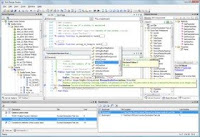
Patterson Consulting's Test Design Studio is an exciting new product that is the first of its kind for Mercury/HP automation. This product serves as a single, integrated editor for WinRunner® scripts and GUI Map Files, QuickTest® Profressional scripts, VBScript files, and Quality Center workflow scripts. Additional functionality is also provided to assist the automation effort and administration of Quality Center.
Advanced Code Editor Control
Test Design Studio utilizes an advanced control for editing text files and provides the same editing experience found in powerful editors like Microsoft®'s Visual Studio 2005 product.

Object Browser
The Object Browser is a visual representation of all the classes, functions, and other members in your libraries, scripts, and other resources. Select any item to see extended details for that item.

Seemless Quality Center Integration
A wizard interface is used to define all Quality Center connection information. You can specify one or more servers and define projects within each server. When opening files, all configured projects will appear completely integrated with your standard file system for easy browsing.

Quality Center Administration
Many of the features typically available through the Quality Center Site Administration and Project Customization utilities will be available directly from within Test Design Studio. Manage multiple projects and servers from within a single interface. 

Integrated Web Browser
Browse the web or any web-based application (like Quality Center) directly within the tool. Each web browser instance appears within the editor as a document tab just like the editor windows.

Friday, November 28, 2008

VMware Lab Manager Add-in For HP Quality Center

The VMware Lab Manager Add-in for HP Quality Center provides an automation bridge between testing and deployment of test environments. QA staff now have the power to seamlessly invoke operations in VMware Lab Manager as part of a Test Set within HP Quality Center or from QuickTest Professional. Test Sets can now deploy variations of applications under test in a virtualized environment and direct other testing tools such as QuickTest Professional and WinRunner to run against them. When defects are encountered, the Add-in facilitates the creation of LiveLinks to capture the running state of the application when it failed. When the tests are finished running, the Add-in can undeploy the virtualized environment to save memory and processing resources.For More Details : Visit - http://www.genilogix.com/solutions/vmware.aspx

Also See : 

HPRead HP's executive brief on virtualization

View the HP/VMware/Genilogix webcast on Performance Testing Virtualized Applications

Thursday, November 20, 2008

Loading Custom QuickTest Professional Add-in When Starting Test From Quality Center

Whenever QuickTest Professional (QTP) is launched from Quality Center (QC), QTP is launched with the default addin ... that is Web Addin (mostly). This can be modified. There is a Template that QC launches which has this addin configured. So Modify the QuickTest Professional Add-in template test to your Addin Settings.

Here are the steps you will need to follow to modify the QTP add-in template test:
1. Launch QTP without connecting to QC.
2. Open up the relevant template from the file system. For example, if you are using QTP 9.1, you need to open up: "\Program Files\Mercury Interactive\QuickTest Add-in for Quality Center\bin\Templates\Template91". You will notice that the last two digits of the script name conform to the version of your QTP. 
3. Once opened, go to File->Settings. 
4. In the Properties tab, click the Modify button and add the relevant add-ins.
5. Apply the changes and save the script. All your generated scripts from QC will now include those add-ins. 

Tuesday, October 21, 2008

Quality Center Login Page - Using HTML & VBScript

Quality Center Login Page - Using HTML & VBScript


Quality Center - Login
QC Url
UserName
Password
Domain
Project
mail to: sunny.deb@gmail.com | http://technologicaguru.blogspot.com


Check out the file : QCDemo.html
Right-Click and View the Source.

Thursday, October 9, 2008

QTP Programming - Set & Remove Environment Variables

The Below Code Sets Environment Variables:

Dim
objWshShell, WshEnv, strEnvName, strEnvValue

strEnvName = "User_Name"
strEnvValue = "Sunny"

' create the WScript.Shell object
Set objWshShell = CreateObject("WScript.Shell")

' access the User Environment property
Set WshEnv = objWshShell.Environment( "User" )

' create and set the custom variable
WshEnv( strEnvName ) = strEnvValue


Remove a specified User environment variable

' access the User Environment property
WshEnv.Remove sVarName

Test Automation Life Cycle

Wednesday, September 24, 2008

QuickTest Automation Object Model

What is the QuickTest Automation Object Model?

An object model is a structural representation of software objects (classes) that comprise the implementation of a system or application. An object model defines a set of classes and interfaces, together with their properties, methods and events, and their relationships.

Essentially all configuration and run functionality provided via the QuickTest interface is in some way represented in the QuickTest automation object model via objects, methods, and properties. Although a one-on-one comparison cannot always be made, most dialog boxes in QuickTest have a corresponding automation object, most options in dialog boxes can be set and/or retrieved using the corresponding object property, and most menu commands and other operations have corresponding automation methods.

You can use the objects, methods, and properties exposed by the QuickTest automation object model, along with standard programming elements such as loops and conditional statements to design your script.

Automation scripts are especially useful for performing the same tasks multiple times or on multiple tests or components, or quickly configuring QuickTest according to your needs for a particular environment or application.

The QuickTest automation object model exposes the objects shown in the diagram below.
You can use these objects, and their associated methods and properties, to write
programs that automatically configure QuickTest options and run tests.


The QuickTest Professional application object.

When designing and running QuickTest automation scripts in a tool that supports the loading of type libraries for editing and running scripts, you can use the new operator to load the QuickTest type library before creating the QuickTest Application object.

Syntax:

Dim app as Application
Set app=new Application

or, if other type libraries are loaded in your tool, specify the QuickTest type library as follows:

Dim app as QuickTest.Application
Set app=new QuickTest.Application

When designing or running QuickTest automation scripts in a tool that does not support the loading of type libraries, use the CreateObject() function to create the QuickTest Application object.

Syntax:

Set app = CreateObject("QuickTest.Application")


You can create only one instance of this object. Use this object to return other QuickTest objects and to perform application level operations such as loading add-ins, creating or opening tests, and launching or closing the QuickTest application.

Open QuickTest and Connect to Quality Center

'**********************************************************************************
'Description:
'
'This example connects to a Quality Center project, opens a test (checks it out, if applicable),
'updates the Active Screen values and test object descriptions, and, if applicable,
'checks the modified test back into the Quality Center project.
'
'Assumptions:
'The test1 test is not already checked out.
'There is no unsaved test currently open in QuickTest.
'For more information, see the example for the Test.SaveAs method.
'When QuickTest opens, it loads the add-ins required for the test.
'For more information, see the example for the Test.GetAssociatedAddins method.
'**********************************************************************************


Dim qtApp 'As QuickTest.Application ' Declare the Application object variable
Dim qtUpdateRunOptions 'As QuickTest.UpdateRunOptions
' Declare an Update Run Options object variable
Dim qtRunResultsOptions 'As QuickTest.RunResultsOptions
' Declare a Run Results Options object variable
Dim blsSupportsVerCtrl ' Declare a flag for indicating version control support


Set qtApp = CreateObject("QuickTest.Application") ' Create the Application object
qtApp.Launch ' Start QuickTest
qtApp.Visible = True ' Make the QuickTest application visible

' Make changes in a test on Quality Center with version control
qtApp.TDConnection.Connect "http://tdserver/tdbin","MY_DOMAIN", "My_Project", "James", "not4you", False ' Connect to Quality Center

If qtApp.TDConnection.IsConnected Then ' If connection is successful
blsSupportsVerCtrl = qtApp.TDConnection.SupportVersionControl ' Check whether the project supports vervion control
qtApp.Open "[QualityCenter] Subject\tests\test1", False ' Open the test
If blsSupportsVerCtrl Then ' If the project supports version control
qtApp.Test.CheckOut ' Check out the test
End If

' Prepare the UpdateRunOptions object
Set qtUpdateRunOptions = CreateObject("QuickTest.UpdateRunOptions") ' Create the update Run Options object
' Set the Update Run options: update the Active Screen and test object descriptions. Do not update checkpoint values
qtUpdateRunOptions.UpdateActiveScreen = True
qtUpdateRunOptions.UpdateCheckpoints = False
qtUpdateRunOptions.UpdateTestObjectDescriptions = True

' Prepare the RunResultsOptions object
Set qtRunResultsOptions = CreateObject("QuickTest.RunResultsOptions") ' Create the Run Results Options object
qtRunResultsOptions.ResultsLocation = "" ' Set a temporary results location

'Update the test
qtApp.Test.UpdateRun qtUpdateRunOptions, qtRunResultsOptions ' Run the test in Update Run mode
qtApp.Test.Description = qtApp.Test.Description & vbNewLine & "Updated: " & Now ' Document the update in the test's description (Test Settings > Properties tab)

qtApp.Test.Save ' Save the test

If blsSupportsVerCtrl And qtApp.Test.VerCtrlStatus = "CheckedOut" Then ' If the test is checked out
qtApp.Test.CheckIn ' Check it in
End If

qtApp.TDConnection.Disconnect ' Disconnect from Quality Center
Else
MsgBox "Cannot connect to Quality Center" ' If connection is not successful, display an error message.
End If

qtApp.Quit ' Exit QuickTest
Set qtUpdateRunOptions = Nothing ' Release the Update Run Options object
Set qtRunResultsOptions = Nothing ' Release the Run Results Options object
Set qtApp = Nothing ' Release the Application object


QuickTest Professional Automation - Test Object

Open a Test

'**********************************************************************************
'Description:
'
'This example opens QuickTest without any add-ins loaded
'(standard Windows support only) and specifies the applications
'to be opened for the test.
'
'Assumptions:
'There is no unsaved test currently open in QuickTest.
'For more information, see the example for the Test.SaveAs method.
'**********************************************************************************

Dim qtApp 'As QuickTest.Application ' Declare the Application object variable
Dim qtStdLauncher 'As QuickTest.StdLauncher ' Declare an Windows Applications launcher variable
Dim qtStdApp 'As QuickTest.StdApplication ' Declare as StdApplication object variable
Dim strAdded ' Declare a string variable for the added applications

Set qtApp = CreateObject("QuickTest.Application") ' Create the Application object

' Preparare application and test
qtApp.SetActiveAddins Array() ' Remove all add-ins from the collection so that QuickTest opens with no add-ins loaded
qtApp.Launch ' Start QuickTest
qtApp.Visible = True ' Make the QuickTest application visible
qtApp.Test.SetAssociatedAddins Array() ' Remove all add-ins from the test's associated add-ins list.
Set qtStdLauncher = qtApp.Test.Settings.Launchers.Item("Windows Applications") ' Return the Windows Applications launcher

qtStdLauncher.Active = True ' Instruct QuickTest to open applications when the record session begins

' Set the applications under test
qtStdLauncher.Applications.AddApplication "C:\Viewer.exe", "C:\" ' Add an application
qtStdLauncher.Applications.AddApplication "D:\Apps\Editor.exe", "D:\Apps" ' Add another application

' Save changes and clean up
qtApp.Test.SaveAs "C:\Tests\NewTest" ' Save the test
qtApp.Quit ' Exit QuickTest
Set qtStdLauncher = Nothing ' Release the Windows Applications launcher object
Set qtApp = Nothing ' Release the Application object


Run a Test

'**********************************************************************************
'Description:
'
'This example opens a test, configures run options and settings,
'runs the test, and then checks the results of the test run.
'
'Assumptions:
'There is no unsaved test currently open in QuickTest.
'For more information, see the example for the Test.SaveAs method.
'When QuickTest opens, it loads the add-ins required for the test.
'For more information, see the example for the Test.GetAssociatedAddins method.
'**********************************************************************************

Dim qtApp 'As QuickTest.Application ' Declare the Application object variable
Dim qtTest 'As QuickTest.Test ' Declare a Test object variable
Dim qtResultsOpt 'As QuickTest.RunResultsOptions ' Declare a Run Results Options object variable

Set qtApp = CreateObject("QuickTest.Application") ' Create the Application object
qtApp.Launch ' Start QuickTest
qtApp.Visible = True ' Make the QuickTest application visible

' Set QuickTest run options
qtApp.Options.Run.ImageCaptureForTestResults = "OnError"

qtApp.Options.Run.RunMode = "Fast"
qtApp.Options.Run.ViewResults = False

qtApp.Open "C:\Tests\Test1", True ' Open the test in read-only mode

' set run settings for the test
Set qtTest = qtApp.Test
qtTest.Settings.Run.IterationMode = "rngIterations" ' Run only iterations 2 to 4
qtTest.Settings.Run.StartIteration = 2
qtTest.Settings.Run.EndIteration = 4
qtTest.Settings.Run.OnError = "NextStep" ' Instruct QuickTest to perform next step when error occurs

Set qtResultsOpt = CreateObject("QuickTest.RunResultsOptions") ' Create the Run Results Options object
qtResultsOpt.ResultsLocation = "C:\Tests\Test1\Res1" ' Set the results location
qtTest.Run qtResultsOpt ' Run the test

MsgBox qtTest.LastRunResults.Status ' Check the results of the test run
qtTest.Close ' Close the test

Set qtResultsOpt = Nothing ' Release the Run Results Options object
Set qtTest = Nothing ' Release the Test object
Set qtApp = Nothing ' Release the Application object